dmsql698@g.skku.edu
https://colab.research.google.com/drive/1Pc7B8H0bI1Y5F1VjKNNSRpI90incMqlO#scrollTo=VHK_pUKb6Iec
Google Colab Notebook
Run, share, and edit Python notebooks
colab.research.google.com
문제 1. Image Transformation
1-1. Translation, Rotation, Affine / Perspective Transformation 행렬을 구해보세요.
이때, 각 행렬의 파라미터는 자유롭게 설정하세요.
그리고 구성한 행렬을 OpenCV Library의 cv2.warpAffine, cv2.warpPerspective와 같은 함수를 이용하여
‘lenna.png’ 이미지에 적용해 변형(Transformation) 해보세요.
# 이미지가 있는지 확인
!ls -al /content | grep Dog.png

import cv2
import numpy as np
from PIL import Image
import matplotlib.pyplot as plt

# (A) OpenCV로 직접 로드하는 방법
# image_cv = cv2.imread("/content/Dog.png")        # BGR 형식으로 읽힘

# (B) 네가 쓴 PIL 로드를 그대로 쓰되 OpenCV 포맷으로 변환
image_pil = Image.open("/content/Dog.png").convert("RGB")   # RGBA면 .convert("RGB")로 알파 제거
image_cv  = cv2.cvtColor(np.array(image_pil), cv2.COLOR_RGB2BGR)  # OpenCV(BGR)로 변환
h, w = image_cv.shape[:2]

# 보기 좋게 원본 보여주기(RGB로 되돌려서 matplotlib에 표시)
plt.imshow(cv2.cvtColor(image_cv, cv2.COLOR_BGR2RGB))
plt.axis("off")
plt.title("Original")
plt.show()

def translate(image, x, y):
    h, w = image.shape[:2]
    M = np.float32([[1, 0, x], [0, 1, y]])
    return cv2.warpAffine(image, M, (w, h))

def rotate(image, angle):
    h, w = image.shape[:2]
    center = (w // 2, h // 2)
    M = cv2.getRotationMatrix2D(center, angle, 1.0)
    return cv2.warpAffine(image, M, (w, h))

def AffineTransformation(image, source_points, target_points):
    M = cv2.getAffineTransform(np.float32(source_points), np.float32(target_points))
    h, w = image.shape[:2]
    return cv2.warpAffine(image, M, (w, h))

def PerspectiveTransformation(image, source_points, target_points):
    M = cv2.getPerspectiveTransform(np.float32(source_points), np.float32(target_points))
    h, w = image.shape[:2]
    return cv2.warpPerspective(image, M, (w, h))

# 3-1 Translation
translated = translate(image_cv, x=50, y=30)

# 3-2 Rotation
rotated = rotate(image_cv, angle=20)

# 3-3 Affine: 이미지의 좌상/상중/좌중을 살짝 당겨보기
src_aff = np.float32([[0,0], [w*0.5,0], [0,h*0.5]])
dst_aff = np.float32([[20,10], [w*0.5+10, 30], [10, h*0.5+20]])
affined = AffineTransformation(image_cv, src_aff, dst_aff)

# 3-4 Perspective: 좌상/우상/좌하/우하 4점을 살짝 사다리꼴로
src_pers = np.float32([[0,0], [w-1,0], [0,h-1], [w-1,h-1]])
dst_pers = np.float32([[40,30], [w-40,10], [20,h-20], [w-20,h-40]])
persed   = PerspectiveTransformation(image_cv, src_pers, dst_pers)

# 시각화(plt는 RGB이므로 변환해서 보여주기)
titles = ["Translated", "Rotated", "Affine", "Perspective"]
images = [translated, rotated, affined, persed]

for t, img in zip(titles, images):
    plt.imshow(cv2.cvtColor(img, cv2.COLOR_BGR2RGB))
    plt.axis("off")
    plt.title(t)
    plt.show()
문제2. Filters
2-1. OpenCV Library를 이용하여 Gaussian Filter, Sobel Filter, Laplacian Filter를 ‘lenna.png’ 이미지에 적용해보세요. 이때, 필터의 크기와 분산은 자유롭게 정해보세요.
2-2. ‘lenna.png’에 Salt and Pepper Noise를 추가하고, 앞서 구현한 Gaussian Filter를 적용해보세요.
그리고 Noise의 증가/감소 관점에서 분석해보세요.
* 구현되어 있는 Salt and Pepper Noise의 probability 값은 (0.0 ~ 0.2) 사이로 설정해주세요.
2-3. 앞서 Salt and Pepper Noise가 추가된 이미지에 cv2.medianBlur 함수를 이용하여 Median Filter를 적용해보세요. 그리고 2-2에서의 Gaussian Filter 결과와 비교·분석해보세요.
# 2-1 Gaussian Filter
def Gaussian_filter(image):
    result = cv2.GaussianBlur(image, (5, 5), 1.0)
    return result

# 2-2 Sobel
def Sobel(image):
    gray = cv2.cvtColor(image, cv2.COLOR_BGR2GRAY)
    grad_x = cv2.Sobel(gray, cv2.CV_64F, 1, 0, ksize=3)
    grad_y = cv2.Sobel(gray, cv2.CV_64F, 0, 1, ksize=3)
    result = cv2.magnitude(grad_x, grad_y)
    return result

# 2-3 Laplacian
def Laplacian(image):
    gray = cv2.cvtColor(image, cv2.COLOR_BGR2GRAY)
    result = cv2.Laplacian(gray, cv2.CV_64F, ksize=3)
    return result


from PIL import Image
import cv2
import numpy as np
import matplotlib.pyplot as plt

# PIL → OpenCV BGR 변환
image_pil = Image.open("/content/Dog.png").convert("RGB")
image_cv  = cv2.cvtColor(np.array(image_pil), cv2.COLOR_RGB2BGR)

plt.imshow(cv2.cvtColor(image_cv, cv2.COLOR_BGR2RGB))
plt.axis("off")
plt.title("Original")
plt.show()


# Gaussian
gaussian_img = Gaussian_filter(image_cv)

# Sobel
sobel_img = Sobel(image_cv)

# Laplacian
laplacian_img = Laplacian(image_cv)

# 보기
titles = ["Gaussian Blur", "Sobel", "Laplacian"]
images = [gaussian_img, sobel_img, laplacian_img]

for t, img in zip(titles, images):
    if len(img.shape) == 2:  # Grayscale 결과
        plt.imshow(img, cmap="gray")
    else:
        plt.imshow(cv2.cvtColor(img, cv2.COLOR_BGR2RGB))
    plt.axis("off")
    plt.title(t)
    plt.show()


rotated = rotate(image_cv, 30)   # 아까 만든 rotate 함수 사용
sobel_rot = Sobel(rotated)

plt.imshow(sobel_rot, cmap="gray")
plt.axis("off")
plt.title("Rotated + Sobel")
plt.show()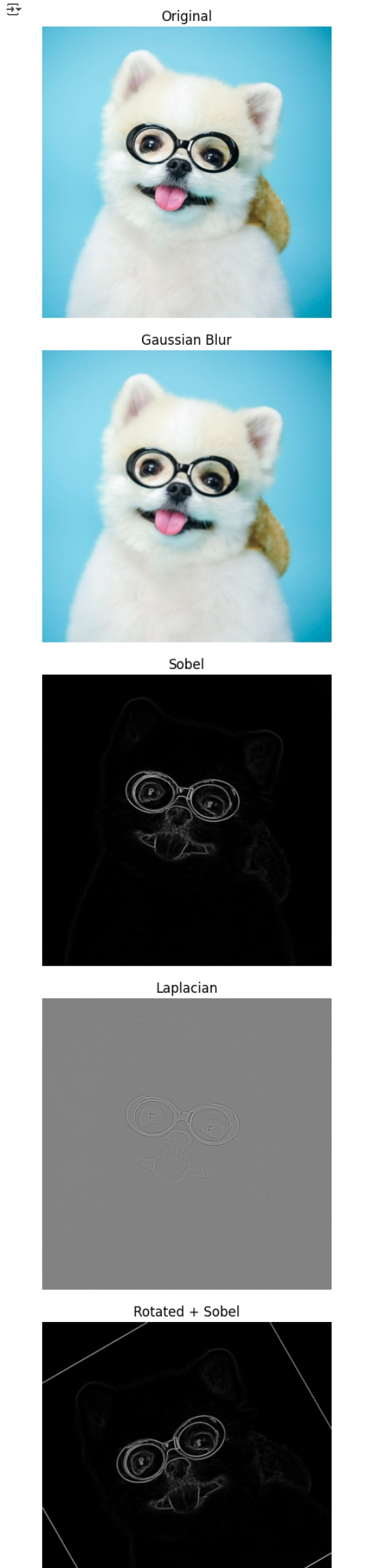
2-3. 앞서 Salt and Pepper Noise가 추가된 이미지에 cv2.medianBlur 함수를 이용하여 Median Filter를 적용해보세요.
그리고 2-2에서의 Gaussian Filter 결과와 비교·분석해보세요.
def median_blur(image):
    # 커널 크기: 3, 5, 7 적용
    result_3 = cv2.medianBlur(image, 3)
    result_5 = cv2.medianBlur(image, 5)
    result_7 = cv2.medianBlur(image, 7)
    return result_3, result_5, result_7

# Median Blur 적용
m3, m5, m7 = median_blur(image_cv)

# 시각화
titles = ["MedianBlur k=3", "MedianBlur k=5", "MedianBlur k=7"]
images = [m3, m5, m7]

for t, img in zip(titles, images):
    plt.imshow(cv2.cvtColor(img, cv2.COLOR_BGR2RGB))
    plt.axis("off")
    plt.title(t)
    plt.show()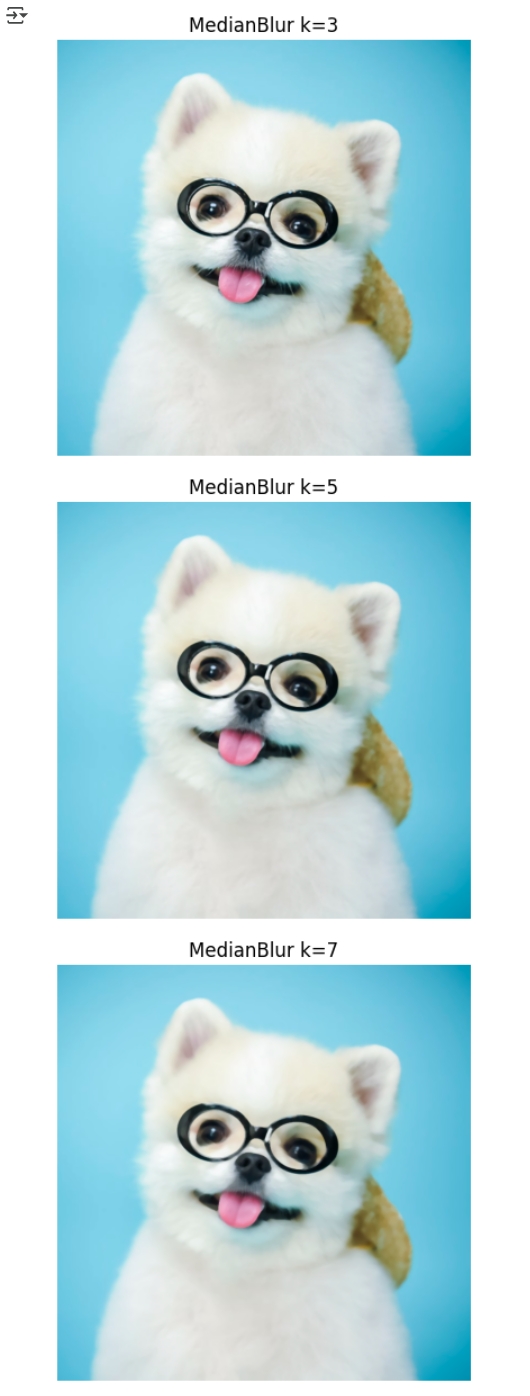
문제2-2. Filters
2-2. ‘lenna.png’에 Salt and Pepper Noise를 추가하고, 앞서 구현한 Gaussian Filter를 적용해보세요.
그리고 Noise의 증가/감소 관점에서 분석해보세요.
* 구현되어 있는 Salt and Pepper Noise의 probability 값은 (0.0 ~ 0.2) 사이로 설정해주세요.
from PIL import Image
import cv2, numpy as np, matplotlib.pyplot as plt

# PIL → OpenCV 포맷(BGR) 변환
image_pil = Image.open("/content/Dog.png").convert("RGB")
image_cv  = cv2.cvtColor(np.array(image_pil), cv2.COLOR_RGB2BGR)

def imshow(title, bgr):
    rgb = cv2.cvtColor(bgr, cv2.COLOR_BGR2RGB) if bgr.ndim==3 else bgr
    plt.imshow(rgb, cmap="gray" if bgr.ndim==2 else None)
    plt.title(title); plt.axis("off"); plt.show()

imshow("Original Dog.png", image_cv)

def gaussian_filter(img, ksize=(5,5), sigma=1.5):
    return cv2.GaussianBlur(img, ksize, sigma)

def sobel_mag(img):
    gray = cv2.cvtColor(img, cv2.COLOR_BGR2GRAY)
    gx = cv2.Sobel(gray, cv2.CV_64F, 1, 0, ksize=3)
    gy = cv2.Sobel(gray, cv2.CV_64F, 0, 1, ksize=3)
    mag = np.sqrt(gx**2 + gy**2)
    return cv2.normalize(mag, None, 0, 255, cv2.NORM_MINMAX).astype(np.uint8)

def laplacian_filter(img):
    gray = cv2.cvtColor(img, cv2.COLOR_BGR2GRAY)
    lap = cv2.Laplacian(gray, cv2.CV_64F, ksize=3)
    return cv2.convertScaleAbs(lap)

gauss_img = gaussian_filter(image_cv)
sobel_img = sobel_mag(image_cv)
lap_img   = laplacian_filter(image_cv)

imshow("Gaussian Blur", gauss_img)
imshow("Sobel Magnitude", sobel_img)
imshow("Laplacian", lap_img)

rng = np.random.default_rng(42)

def add_salt_pepper(img, p=0.1):
    noisy = img.copy()
    h, w = noisy.shape[:2]
    n = int(p * h * w)
    # pepper
    ys, xs = rng.integers(0, h, n//2), rng.integers(0, w, n//2)
    noisy[ys, xs] = 0
    # salt
    ys, xs = rng.integers(0, h, n - n//2), rng.integers(0, w, n - n//2)
    noisy[ys, xs] = 255
    return noisy

p = 0.12  # 노이즈 비율
noisy_sp = add_salt_pepper(image_cv, p)
den_sp_gauss = gaussian_filter(noisy_sp)

imshow(f"Dog with Salt&Pepper (p={p})", noisy_sp)
imshow("After Gaussian Filtering", den_sp_gauss)

median_3 = cv2.medianBlur(noisy_sp, 3)
median_5 = cv2.medianBlur(noisy_sp, 5)

imshow("Median Blur (k=3)", median_3)
imshow("Median Blur (k=5)", median_5)
After Gaussian Filter
from PIL import Image
import cv2, numpy as np, matplotlib.pyplot as plt

# PIL → OpenCV 포맷(BGR) 변환
image_pil = Image.open("/content/lenna.png").convert("RGB")
image_cv  = cv2.cvtColor(np.array(image_pil), cv2.COLOR_RGB2BGR)

def imshow(title, bgr):
    rgb = cv2.cvtColor(bgr, cv2.COLOR_BGR2RGB) if bgr.ndim==3 else bgr
    plt.imshow(rgb, cmap="gray" if bgr.ndim==2 else None)
    plt.title(title); plt.axis("off"); plt.show()

imshow("Original lenna.png", image_cv)

# Gaussian Filter
def gaussian_filter(img, ksize=(5,5), sigma=1.5):
    return cv2.GaussianBlur(img, ksize, sigma)

# Salt & Pepper Noise 함수
rng = np.random.default_rng(42)
def add_salt_pepper(img, p=0.1):
    noisy = img.copy()
    h, w = noisy.shape[:2]
    n = int(p * h * w)
    # pepper (검은 점)
    ys, xs = rng.integers(0, h, n//2), rng.integers(0, w, n//2)
    noisy[ys, xs] = 0
    # salt (흰 점)
    ys, xs = rng.integers(0, h, n - n//2), rng.integers(0, w, n - n//2)
    noisy[ys, xs] = 255
    return noisy

# 노이즈 비율 설정
p = 0.12
noisy_sp = add_salt_pepper(image_cv, p)

# 🔹 Gaussian Filter 적용
den_sp_gauss = gaussian_filter(noisy_sp, (5,5), 1.5)

# 결과 출력
imshow(f"Salt & Pepper Noise (p={p})", noisy_sp)
imshow("After Gaussian Filtering", den_sp_gauss)
문제3. Image Pyramids
3-1. ‘lenna.png’ 이미지에 OpenCV Library의 cv2.resize 함수를 이용하여 Up-sampling과 Down-sampling을 적용해보세요. 이때, Interpolation의 여러 방식(Bi-linear, Cubic 등)을 세 가지 이상 적용시켜 보고, Interpolation으로 생성된 결과들에 대해 분석해보세요.
3-2. ‘lenna.png’ 이미지에 OpenCV Library의 pyrUp과 pyrDown 함수를 이용하여 Gaussian Pyramid를 구성해보세요. 그리고 각 이미지들의 퀄리티와 크기를 분석해보세요.
3-3. ‘lenna.png’ 이미지에 Laplacian Pyramid를 적용하여 복원해보세요. 그리고 원본, Gaussian Pyramid, Laplacian Pyramid를 적용한 이미지들의 퀄리티와 크기를 비교·분석해보세요.
import cv2
import numpy as np
from PIL import Image
import matplotlib.pyplot as plt

# 이미지 로드 (OpenCV 형식 BGR)
image_pil = Image.open("/content/Dog.png").convert("RGB")
image_cv  = cv2.cvtColor(np.array(image_pil), cv2.COLOR_RGB2BGR)

# 3-1 Resize
def resize_examples(image):
    down_result_01 = cv2.resize(image, (image.shape[1]//2, image.shape[0]//2), interpolation=cv2.INTER_NEAREST)
    down_result_02 = cv2.resize(image, (image.shape[1]//2, image.shape[0]//2), interpolation=cv2.INTER_LINEAR)
    down_result_03 = cv2.resize(image, (image.shape[1]//2, image.shape[0]//2), interpolation=cv2.INTER_CUBIC)

    up_result_01 = cv2.resize(image, (image.shape[1]*2, image.shape[0]*2), interpolation=cv2.INTER_NEAREST)
    up_result_02 = cv2.resize(image, (image.shape[1]*2, image.shape[0]*2), interpolation=cv2.INTER_LINEAR)
    up_result_03 = cv2.resize(image, (image.shape[1]*2, image.shape[0]*2), interpolation=cv2.INTER_CUBIC)

    return down_result_01, down_result_02, down_result_03, up_result_01, up_result_02, up_result_03

# 3-2 Gaussian Pyramid
def gaussian_pyramid(image):
    G_down1 = cv2.pyrDown(image)
    G_down2 = cv2.pyrDown(G_down1)
    G_up1 = cv2.pyrUp(G_down2)
    G_up2 = cv2.pyrUp(G_up1)
    return G_down1, G_down2, G_up1, G_up2

# 3-3 Laplacian Pyramid
def laplacian_pyramid(image):
    G_down = cv2.pyrDown(image)
    G_up = cv2.pyrUp(G_down, dstsize=(image.shape[1], image.shape[0]))  # 크기 맞추기
    L = cv2.subtract(image, G_up)
    return L

# -------------------------------
# 함수 호출 및 결과 확인
# -------------------------------
down1, down2, down3, up1, up2, up3 = resize_examples(image_cv)
Gd1, Gd2, Gu1, Gu2 = gaussian_pyramid(image_cv)
L = laplacian_pyramid(image_cv)

# 시각화
titles = [
    "Down Nearest", "Down Linear", "Down Cubic",
    "Up Nearest", "Up Linear", "Up Cubic",
    "Gaussian Down1", "Gaussian Down2", "Gaussian Up1", "Gaussian Up2",
    "Laplacian Pyramid"
]
images = [down1, down2, down3, up1, up2, up3, Gd1, Gd2, Gu1, Gu2, L]

for t, img in zip(titles, images):
    plt.imshow(cv2.cvtColor(img, cv2.COLOR_BGR2RGB))
    plt.axis("off")
    plt.title(t)
    plt.show()

문제4. Median Blur 직접 구현
4-1. 앞서 적용해보았던 Median Blur를 NumPy 라이브러리를 활용하여 직접 구현해보세요.
이때, np.sort와 같은 모든 라이브러리 사용은 가능합니다.
단, cv2.medianBlur()는 사용하지 않고 직접 구현한 후,
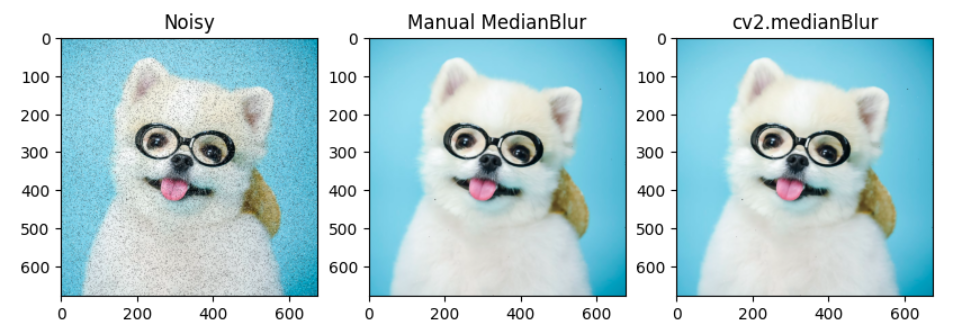
결과를 검증하기 위하여 cv2.medianBlur() 결과와 직접 구현한 결과를 비교·분석해보세요.
import cv2
import numpy as np
from PIL import Image
import matplotlib.pyplot as plt

# 원본 이미지 로드 (Dog.png 예시)
image_pil = Image.open("/content/Dog.png").convert("RGB")
image_cv  = cv2.cvtColor(np.array(image_pil), cv2.COLOR_RGB2BGR)

def median_blur_manual(img, ksize=3):
    """
    img : 입력 영상 (BGR)
    ksize : 필터 크기 (홀수)
    """
    pad = ksize // 2
    # 테두리 보존 위해 zero-padding 대신 replicate padding
    padded = cv2.copyMakeBorder(img, pad, pad, pad, pad, cv2.BORDER_REPLICATE)
    h, w, c = img.shape
    result = np.zeros_like(img)

    for y in range(h):
        for x in range(w):
            for ch in range(c):
                window = padded[y:y+ksize, x:x+ksize, ch]
                median_val = np.median(window)
                result[y, x, ch] = median_val
    return result

# 직접 구현 median blur
manual = median_blur_manual(image_cv, ksize=3)

# OpenCV medianBlur와 비교
opencv = cv2.medianBlur(image_cv, 3)

# 시각화
plt.subplot(1,3,1)
plt.imshow(cv2.cvtColor(image_cv, cv2.COLOR_BGR2RGB))
plt.title("Original"); plt.axis("off")

plt.subplot(1,3,2)
plt.imshow(cv2.cvtColor(manual, cv2.COLOR_BGR2RGB))
plt.title("Manual MedianBlur"); plt.axis("off")

plt.subplot(1,3,3)
plt.imshow(cv2.cvtColor(opencv, cv2.COLOR_BGR2RGB))
plt.title("cv2.medianBlur"); plt.axis("off")

plt.show()
# 노이즈 추가
def add_salt_pepper(img, p=0.1):
    noisy = img.copy()
    h, w = noisy.shape[:2]
    n = int(p * h * w)
    ys = np.random.randint(0, h, n)
    xs = np.random.randint(0, w, n)
    for y, x in zip(ys, xs):
        if np.random.rand() < 0.5:
            noisy[y, x] = 0     # pepper
        else:
            noisy[y, x] = 255   # salt
    return noisy

noisy_img = add_salt_pepper(image_cv, p=0.1)

manual_med = median_blur_manual(noisy_img, ksize=3)
opencv_med = cv2.medianBlur(noisy_img, 3)

plt.figure(figsize=(10,5))
plt.subplot(1,3,1); plt.imshow(cv2.cvtColor(noisy_img, cv2.COLOR_BGR2RGB)); plt.title("Noisy")
plt.subplot(1,3,2); plt.imshow(cv2.cvtColor(manual_med, cv2.COLOR_BGR2RGB)); plt.title("Manual MedianBlur")
plt.subplot(1,3,3); plt.imshow(cv2.cvtColor(opencv_med, cv2.COLOR_BGR2RGB)); plt.title("cv2.medianBlur")
plt.show()
'개인 프로젝트 > 대학원 수업 정리' 카테고리의 다른 글
| 컴퓨터와 비전 (0) | 2025.10.14 |
|---|---|
| 인공지능 수학 (0) | 2025.10.13 |
| [Python] Computer Vision_Gaussian Filter (0) | 2025.09.19 |
| Computer Vision(과제) (0) | 2025.09.17 |
| [데이터베이스시스템특론] 기말준비 (0) | 2025.06.08 |


댓글